Published: December 18, 2025 • 15 min read • By UPLYNK
What is the Copilot Answer Control in Power Apps (Preview)?
Power Apps is continually evolving with AI at its core and one exciting new addition is the Copilot Answer Control, a preview feature that empowers app makers to add the Copilot answer control to let users get AI-generated answers to preset questions with a single click. Powered by Microsoft Copilot, it’s designed for mobile users to quickly access answers to common questions.
Imagine users being able to tap a button inside your app and instantly get a contextual answer to a common data question like "How many orders are overdue?" or "What’s the total revenue for this month?" powered by Microsoft Copilot and Dataverse.
This feature is especially useful for mobile users who need fast insights without navigating complex screens or writing formulas.
Why Copilot Answer Control Matters
The Copilot Answer Control solves a common challenge in business apps: delivering quick answers to frequently asked questions without building custom dashboards or separate logic paths. Here’s what it brings to the table:
✨ Instant insights with one click
✨ AI-powered answers tailored to your data
✨ Seamless experience ideal for frontline and mobile users
✨ Feedback collection to help improve responses over time
Imagine a field technician opening an app and immediately seeing "Your next appointment starts at 10:30 AM", that’s the value this control unlocks in real scenarios.
How to Use Copilot Answer Control in Your Canvas Apps
Here’s a step-by-step guide to getting started:
1. Enable the Feature in Your Environment
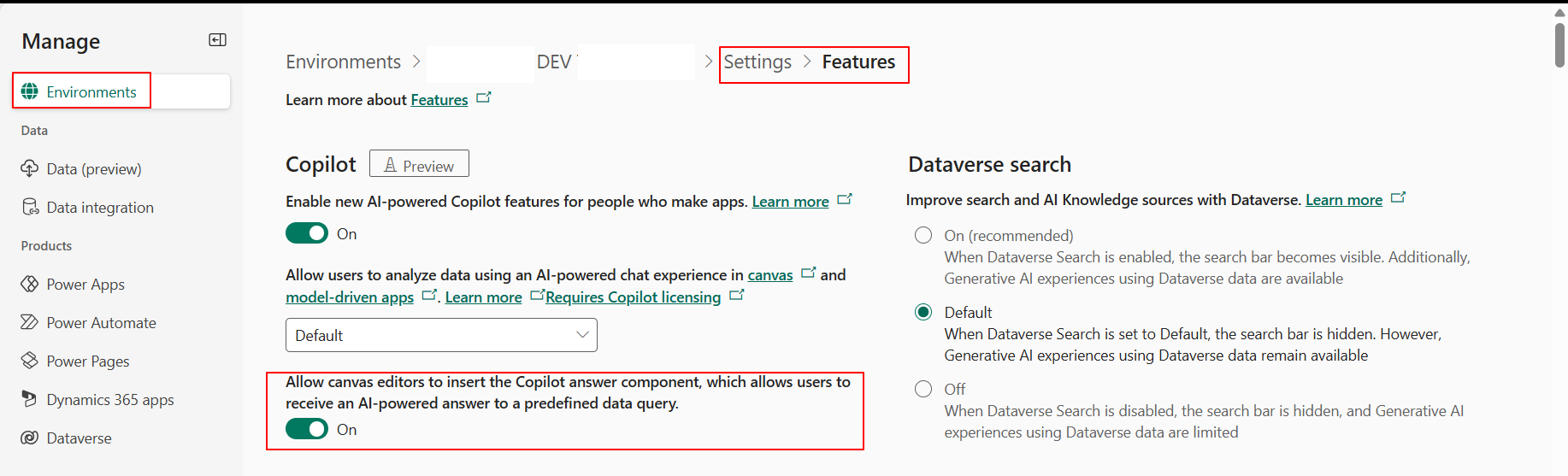
Before you can add Copilot Answer to any app, an admin must turn on the relevant preview feature in the Power Platform admin center:
- Go to Environments.
- Select the environment you want to enable.
- Navigate to Settings > Product > Features.
- Turn on Allow canvas editors to insert the Copilot answer component.
Note: Because this is a preview feature, admins must enable it and it’s not yet recommended for production apps.
2. Add the Copilot Answer Control
Once enabled:
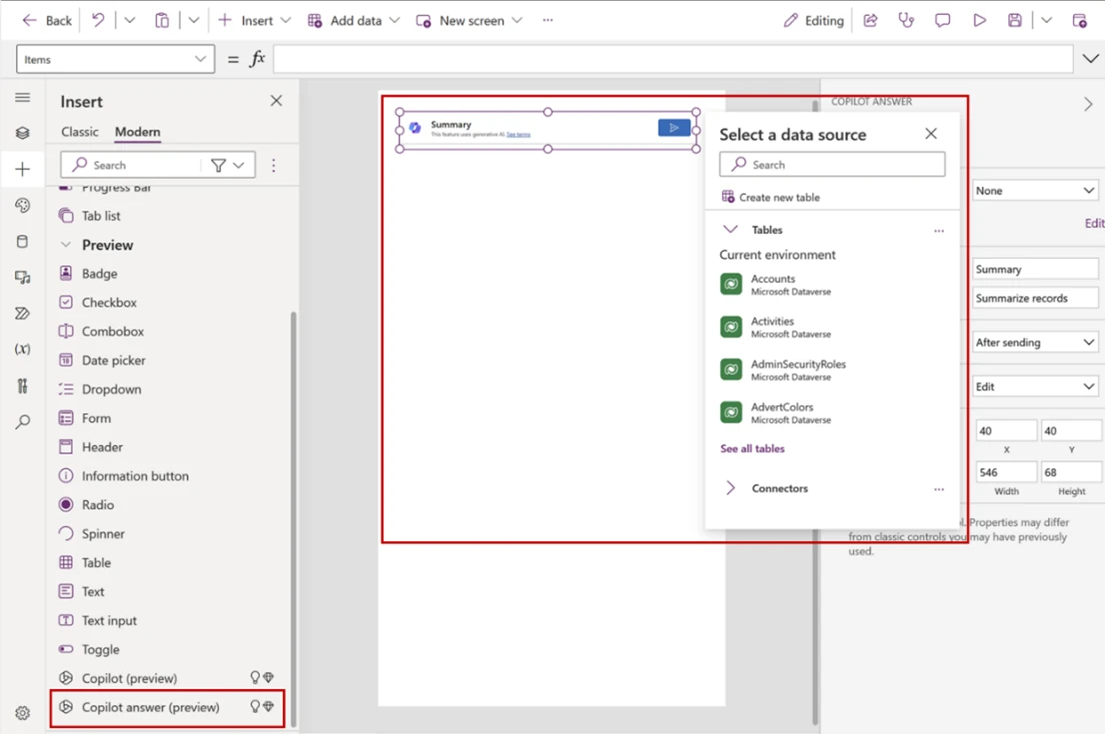
- Open the Canvas App in Power Apps Studio.
- From the Insert menu, select Copilot answer (preview).
- Choose a Dataverse table as the data source (only Dataverse is supported right now).
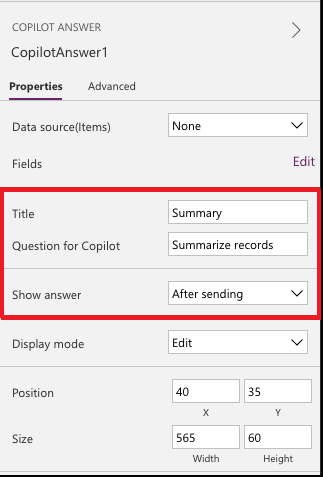
- In the properties pane, enter:
- Title
- Question for Copilot
- Show answer for question
- Save and publish your app.
3. How End Users Interact
Once published:
- Open the app on Power Apps mobile or web.
- Navigate to the Copilot Answer Control.
- Tap Send to generate a response.
- Users can regenerate the answer or submit feedback on answer quality.
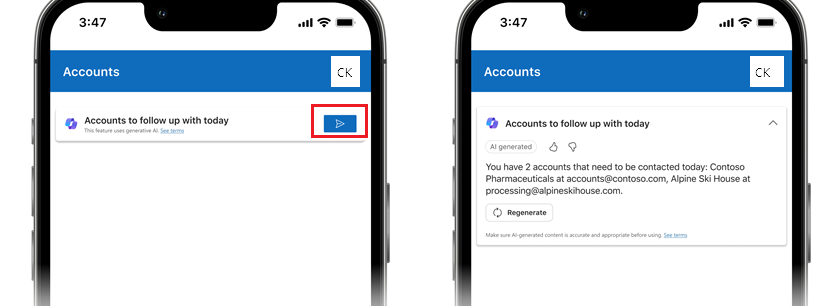
This makes insights available instantly, without requiring users to know where the data lives or how to collect it.
User Feedback and Regeneration
One of the strengths of the Copilot Answer Control is the ability for app users to provide feedback (like thumbs up👍/thumbs down👎) and regenerate answers if needed. This makes the control more adaptive and helps Microsoft improve generative performance over time.
If you’d rather disable feedback collection, that can be done via the Organization table in Dataverse by unchecking the appropriate column, though this step is optional.
👉 Read More: How to Add AI Copilot to Your Canvas Apps in Power Apps (Preview Guide)
Key Considerations
- Preview Status : This feature is in preview and may change before general release.
- Dataverse Only : The control currently only supports Dataverse tables as the data source.
- Optimized for Mobile : The control is designed with mobile users in mind, delivering answers fast and simply.
Conclusion
The Copilot Answer Control introduces a powerful way to embed predefined questions directly inside your Power Apps canvas apps. By combining Dataverse data with Microsoft Copilot, you can deliver instant insights without complex logic or custom coding, all within a mobile-optimized experience.
As this preview feature evolves, makers can expect even richer ways to bring AI directly into everyday app interactions, transforming how users access data and make decisions.
“At UPLYNK, we’re committed to empowering the Microsoft Dynamics 365 community through insightful blogs, practical tutorials and real-world implementation guidance — helping professionals learn, grow and stay ahead in the ever-evolving D365 ecosystem.”