Published: January 7, 2026 • 10 min read • By UPLYNK
Named Formulas (Formulas Property) in Power Apps: Write Once, Use Everywhere
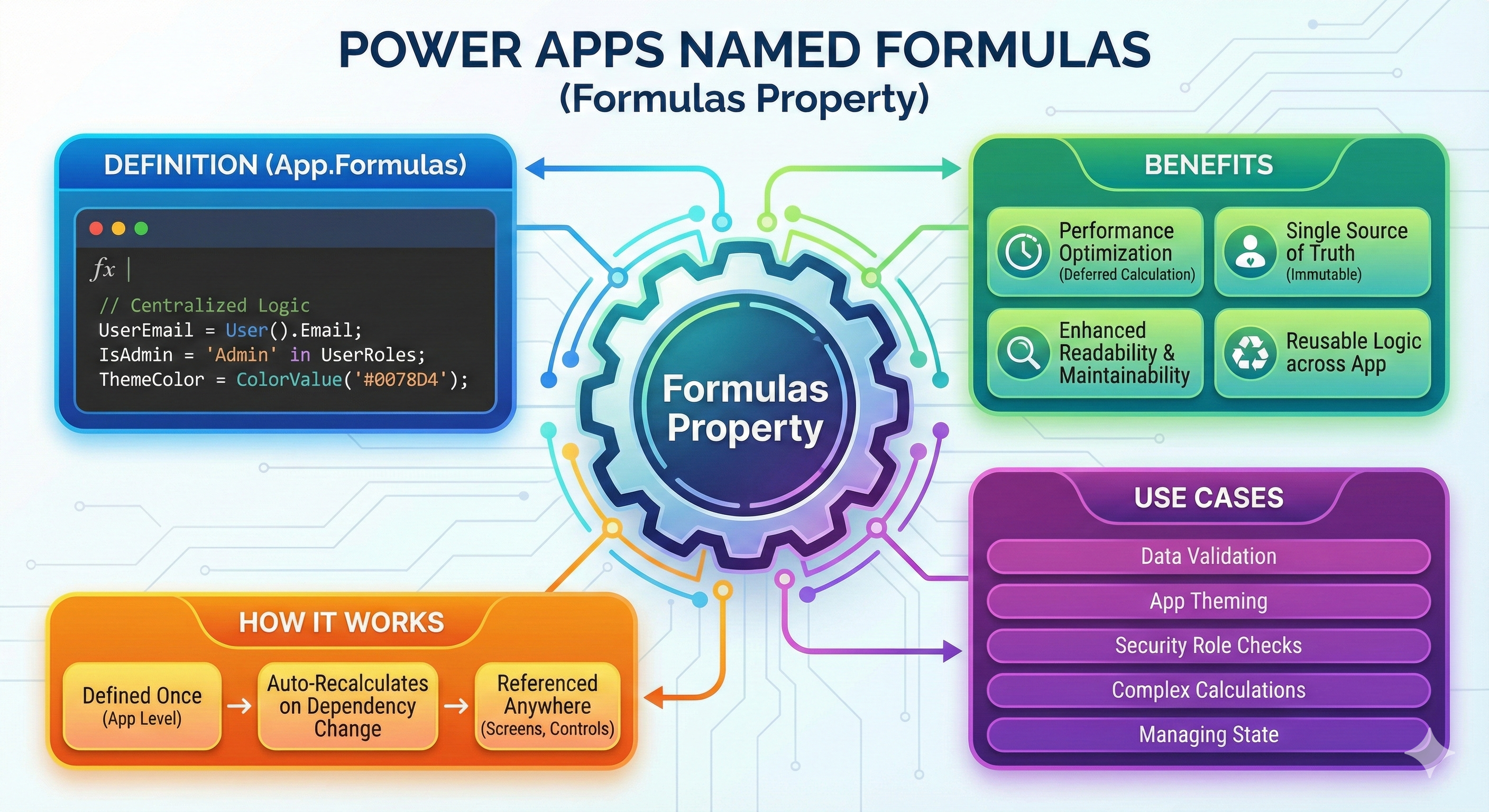
As Power Apps applications grow, formulas often get repeated across multiple screens and controls. This makes apps harder to maintain, debug and scale. Named formulas, introduced through the Formulas property , solve this problem by allowing you to define reusable formulas at the app level.
In this blog, we’ll explore what named formulas are, why they matter and how to use them effectively in Power Apps.
What Are Named Formulas?
Named formulas are app-level formulas defined in the Formulas property of a Power Apps canvas app. Once defined, they can be referenced anywhere in the app just like variables but with key advantages.
Think of named formulas as:
- Constants
- Derived values
- Reusable logic
that automatically recalculate when their dependencies change.
Where to Find the Formulas Property
- Open your Canvas App
- Select App in the Tree View
- In the property dropdown, select Formulas
This is where you define all named formulas for your app.
Basic Syntax of Named Formulas
FormulaName = Expression
Example:
PrimaryColor = ColorValue(Param("PrimaryColor"))
Once defined, you can use PrimaryColor anywhere in the app.
Example: Consistent Styling Across the App
Instead of repeating the same formula in multiple controls:
Label1.Fill = ColorValue(Param("BackgroundColor"))

Label2.Fill = ColorValue(Param("BackgroundColor"))
You can define a named formula:
AppBackgroundColor = ColorValue(Param("BackgroundColor"))
And then use it like this:
Label1.Fill = AppBackgroundColor

Label2.Fill = AppBackgroundColor
✅ Cleaner
✅ Centralized
✅ Easy to update
| Feature | Named Formulas | Variables |
|---|---|---|
| Scope | App-level | Screen/App |
| Mutability | Read-only | Can be changed |
| Auto recalculation | Yes | No |
| Best for | Constants & derived values | State & user actions |
Note: Use named formulas for values that should not be changed manually.
Using Named Formulas for Business Logic
Named formulas are not just for styling, they are powerful for logic too.
Example: User Role Check
IsAdmin = User().Email in AdminUsers.Email
Usage:
Button.Visible = IsAdmin
Any change to AdminUsers automatically updates all dependent controls.
Chaining Named Formulas
Named formulas can depend on other named formulas.
BaseFontSize = 14

HeadingFontSize = BaseFontSize + 6
Performance Benefits
Because named formulas:
- Are evaluated only when dependencies change
- Are not re-triggered unnecessarily
- Eliminate duplicated logic
they help improve performance and maintainability, especially in large apps.
Common Use Cases
- Theme colors and fonts
- Environment-based configuration
- Role-based access logic
- Reusable calculations
- App-wide constants
Limitations to Keep in Mind
- ❌ Cannot be updated using Set() or UpdateContext()
- ❌ No side effects (cannot call Collect, Patch, etc.)
- ❌ Only supports pure formulas
This is intentional and ensures predictable behavior.
Best Practices
- Use PascalCase or camelCase for clarity
- Keep formulas simple and readable
- Group related formulas together
- Avoid overloading formulas with complex logic
Conclusion
Named formulas in the Formulas property bring structure, clarity and reusability to Power Apps development. By centralizing logic and constants, they help you build apps that are easier to maintain, scale and understand.
If you’re still repeating the same formulas across screens, it’s time to start using named formulas.
“At UPLYNK, we’re committed to empowering the Microsoft Dynamics 365 community through insightful blogs, practical tutorials and real-world implementation guidance — helping professionals learn, grow and stay ahead in the ever-evolving D365 ecosystem.”