Published: December 15, 2025 • 20 min read • By UPLYNK
How to Add AI Copilot to Your Canvas Apps in Power Apps (Preview Guide)
Artificial Intelligence is now deeply woven into the Power Platform and one of the most exciting ways to bring AI directly into your apps is through the Copilot control. This feature lets end users interact with your app’s data using natural language conversations, powered by Azure OpenAI Services, democratizing insights and enabling smarter decision-making without extra UI components or custom bots.
In this guide, we’ll walk you through what Copilot in Canvas Apps is, why it matters and how you can add and customize it in your apps today, even while it’s in preview.
What Is the Copilot Control in Power Apps?
The Copilot control is an AI assistant component you can insert directly into a Canvas App to give users natural language access to their app’s data. Users can ask questions like "How many open tickets do we have?" or "Show me the top projects by revenue" and Copilot responds with insights drawn from the connected data source.
This feature is currently available as a preview release, which means it’s ideal for early experimentation but not yet recommended for production apps. Expect future updates and refinements as Microsoft iterates on the experience.
Prerequisites: What You Need Before You Start
Before you can add Copilot to your app:
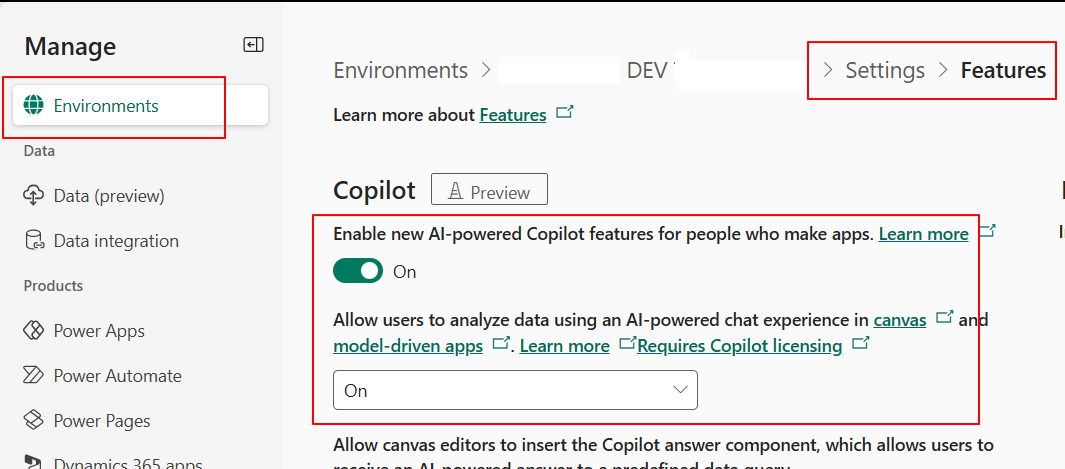
1. Ensure Copilot Is Enabled at the Environment Level
A Power Platform administrator must enable the "Allow users to analyze data using an AI-powered chat experience" setting in the Power Platform admin center for your environment.
2. Your Data Source Must Be Dataverse
The Copilot control currently only supports Dataverse tables as the data source. You cannot connect it directly to SharePoint lists or SQL at this time.
💡Note:Preview Feature Limitations
Because this is preview functionality, it’s not fully supported for production and behavior or capabilities may change between versions.
Step-by-Step: Adding the Copilot Control to Your Canvas App
Here’s how to add the Copilot control to your Canvas App:
1. Open Your App in Power Apps Studio
Start by opening your Canvas App in the Power Apps Studio.
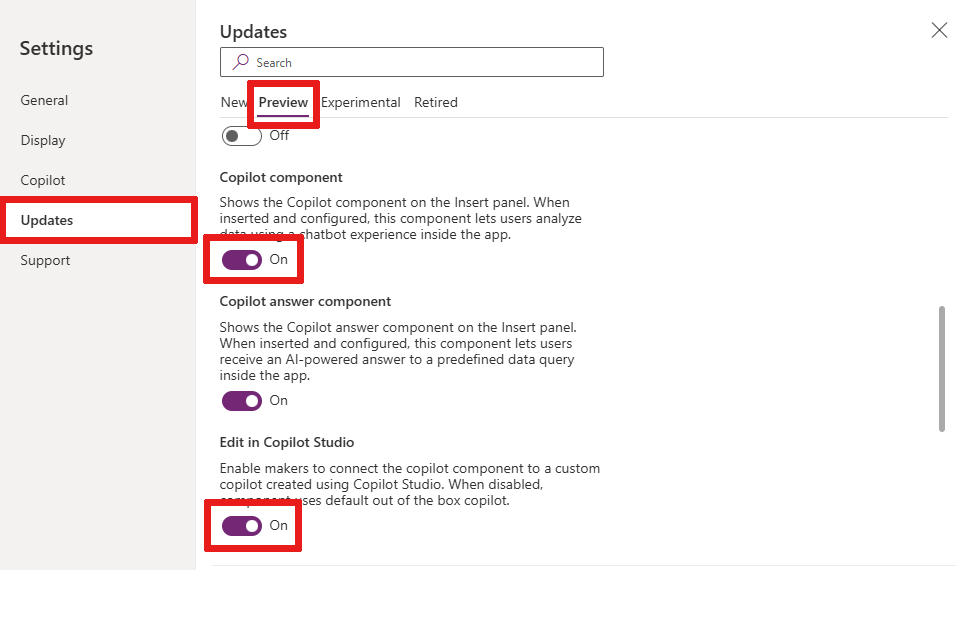
2. Enable Copilot in App Settings
Go to Settings > Updates, On the Preview tab, turn on:
- Copilot component : Enables Copilot in the current app
- Edit in Copilot Studio : Allows you to customize the Copilot using Copilot Studio later
3. Add the Copilot Control
From the Insert menu, select Copilot (preview). When prompted, choose a Dataverse table as the data source for the Copilot.
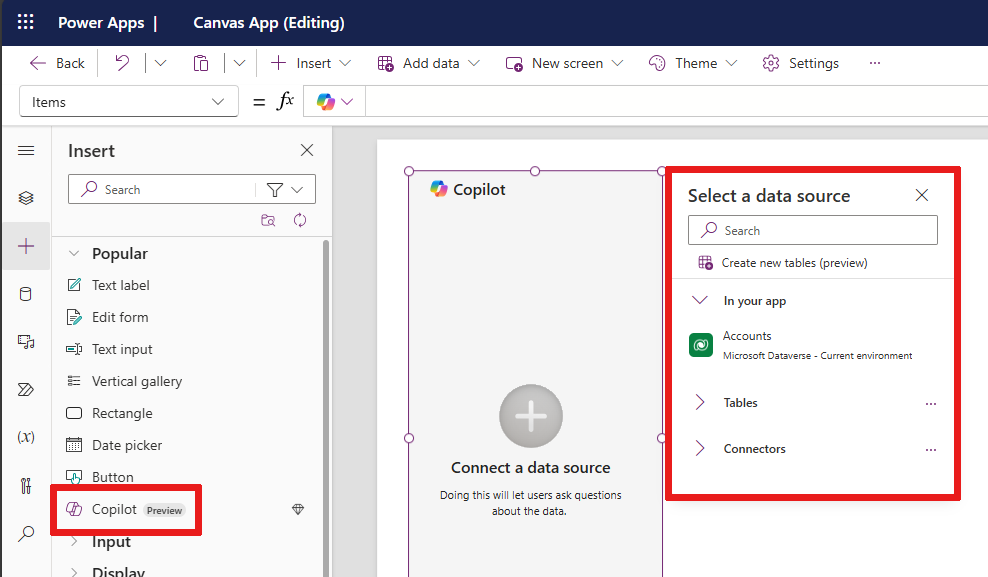
This adds an interactive Copilot panel or control to your app that your users can tap or click to start asking questions.
Customizing Your Copilot Using Copilot Studio
Once you’ve added the Copilot control, you can customize your newly connected copilot in Power Apps through the properties menu.
- Select the Copilot control in your Canvas App.
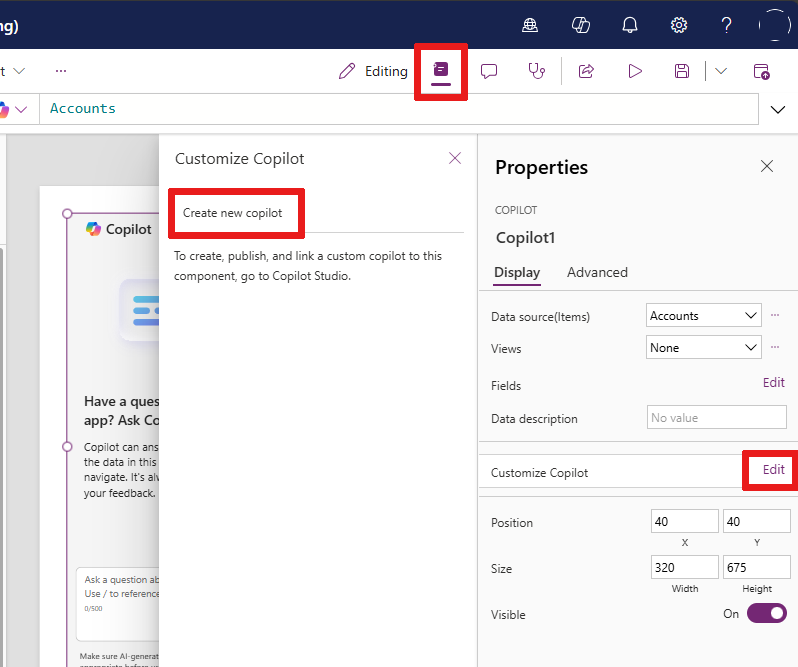
- In the Properties panel, click Edit next to the "Customize Copilot" field.
- If you don't have a copilot created then choose Create new copilot in the Customize Copilot pane. This opens Copilot Studio in a new tab and any changes you make in Copilot Studio appear in your connected copilot in your canvas app.
In Copilot Studio you can:
- Define articles and knowledge topics the Copilot can reference
- Create actions like opening screens or triggering flows
- Customize prompts and responses for your app’s use case
This makes the AI experience more tailored to your business logic and app audience.
Collecting User Feedback
Users interacting with Copilot can provide feedback on its response quality using thumbs up/down and optional comments. This feedback helps Microsoft improve Copilot over time.
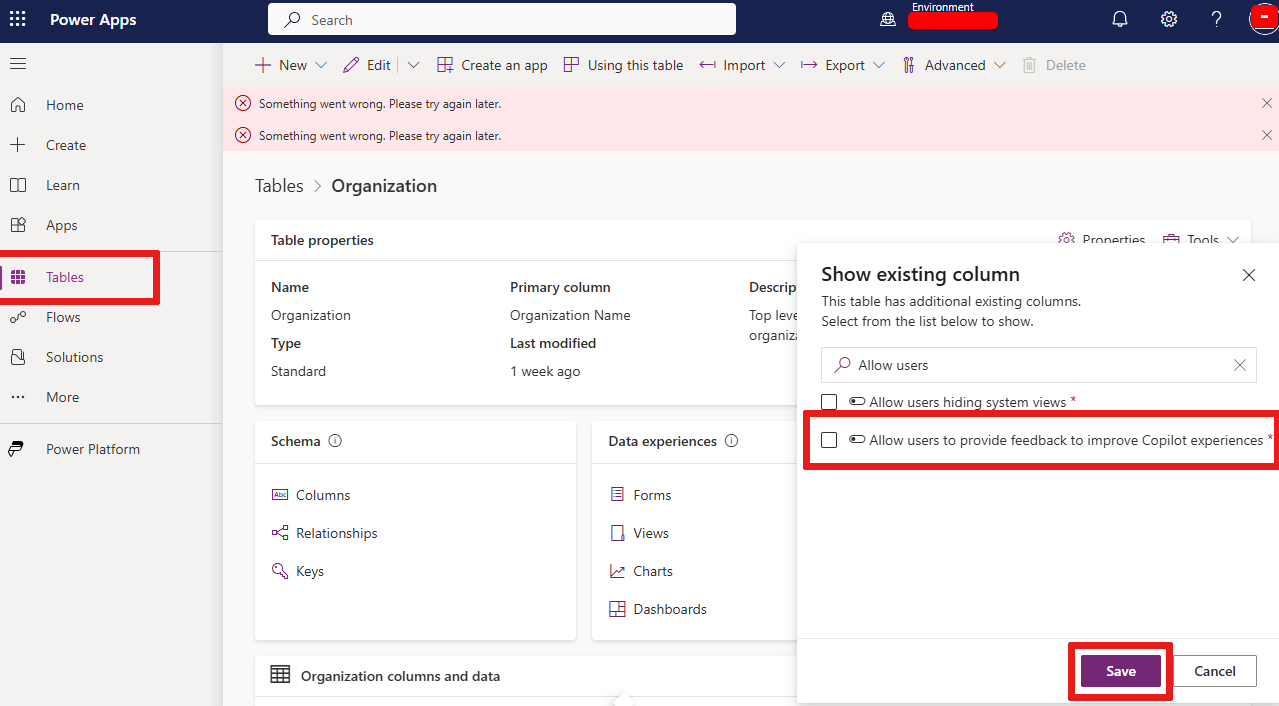
If you prefer to disable feedback collection, you can do so by turning off the Allow users to provide feedback for App Copilot column in the Organization table within Dataverse. This gives you control over what data (if any) flows back for feature improvement.
Benefits of Adding Copilot
Adding AI Copilot to your Canvas App brings several advantages:
- Natural language interaction : Users can query data without building custom screens or dashboards.
- Faster insights : Copilot can summarize and explain complex data quickly.
- Custom actions : Using Copilot Studio, you can enable Copilot to perform actions or flows.
- Better user adoption : Makes apps more intuitive for non-technical users.
💡Things to Keep in Mind
- ✨Preview features are subject to change and not recommended for critical production workloads.
- ✨Only Dataverse is supported as a Copilot data source today other connectors may come later.
Conclusion
Adding the Copilot control to your Canvas App unlocks a powerful new interaction model that enables users to explore data, ask questions and get meaningful insights, all through natural language. This brings Power Apps closer to where business users want to work: simple, conversational and AI-enhanced.
As the feature evolves beyond preview, expect even more customization, data connectors and deeper integration with business logic, making Copilot not just an assistant but a core part of your app experience.
“At UPLYNK, we’re committed to empowering the Microsoft Dynamics 365 community through insightful blogs, practical tutorials and real-world implementation guidance — helping professionals learn, grow and stay ahead in the ever-evolving D365 ecosystem.”